Intro
You can now easily handle Server Connect results globally — directly from the page element such as <body> — without adding separate dynamic events to every Server Connect component.
This is done through the XHR event group available under Dynamic Events.
It allows you to react to all server responses like Success, Error, Unauthorized, or Forbidden, in one central place on your page.
By using global XHR events, you can show consistent notifications, handle login redirects, or manage errors — all without repeating logic for every Server Connect action.
[!note]
Global XHR events work on the client-side, reacting to the results of your Server Connect calls. They don’t modify your server actions or backend workflows.
Why Use Global Events
In apps with many Server Connect actions and forms, handling each event individually can quickly become repetitive.
Global events allow you to:
- Catch errors or unauthorized responses across the entire page.
- Show consistent toast messages or alerts.
- Automatically redirect users.
- Maintain a clean and consistent user experience.
Available XHR Events
Each Server Connect request can trigger one of several XHR events depending on the response from the server.
You can handle any of these globally from your page element, such as <body> or App.
| Event | Description |
|---|---|
| Success | The request completed successfully (HTTP 200). Use this to show confirmation messages or update UI components. |
| Invalid | The request failed due to invalid data (HTTP 400). Often used for form validation or incorrect inputs. |
| Unauthorized | The user is not logged in or the session expired (HTTP 401). Typically used to redirect to the login page. |
| Forbidden | The user doesn’t have permission to access this resource (HTTP 403). Use it to show an “Access denied” message. |
| Rate Limit | Too many requests were sent in a short period (HTTP 429). You can show a friendly “Please wait” notification. |
| Abort | The request was canceled or interrupted before it finished. Often occurs if the user navigates away mid-request. |
| Error | A general error occurred — network failure, timeout, or invalid server response. Use this for a global “Something went wrong” message. |
Setting Up Global Handlers
Every Server Connect request or form submission emits XHR events such as Success, Invalid, Error, Unauthorized, or Forbidden.
These events bubble up through the DOM, so they can be caught from a parent element — like the page <body>.
You can use these global events to trigger different actions when a Server Connect call succeeds or fails.
They can:
- Run a component on the page (e.g. show a toast, notification, or open a modal)
- Run a Page Flow for more complex logic
- Or run an Inline Flow directly inside the event
In this example, we’ll use an Inline Flow that shows a Toast when a Server Connect action fails.
Select App in App Structure, then add a new Dynamic Event → XHR → Error:
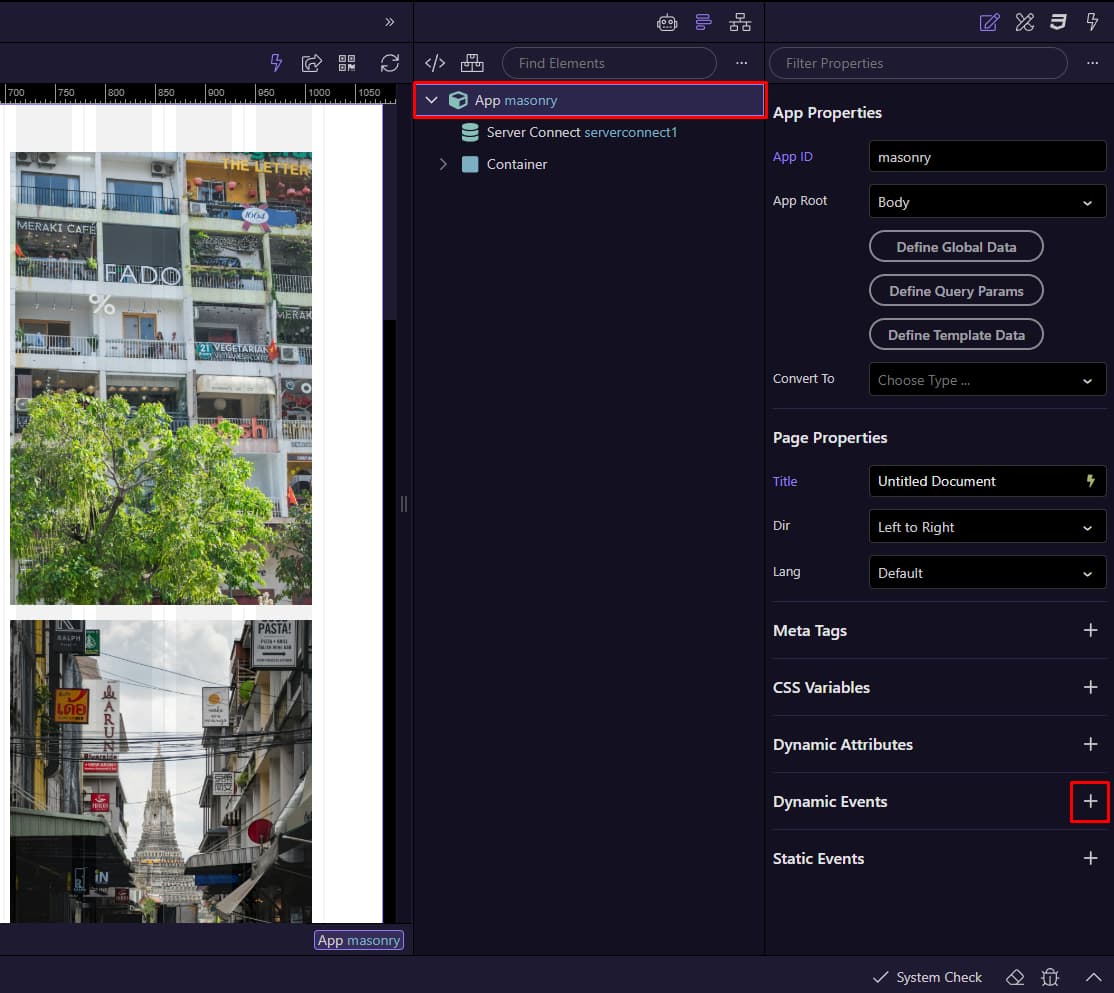

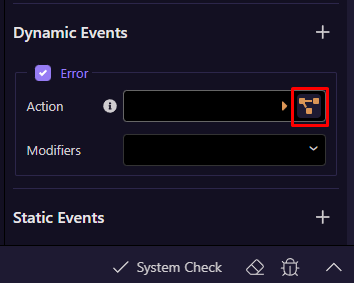
Then click the Inline Flow icon:
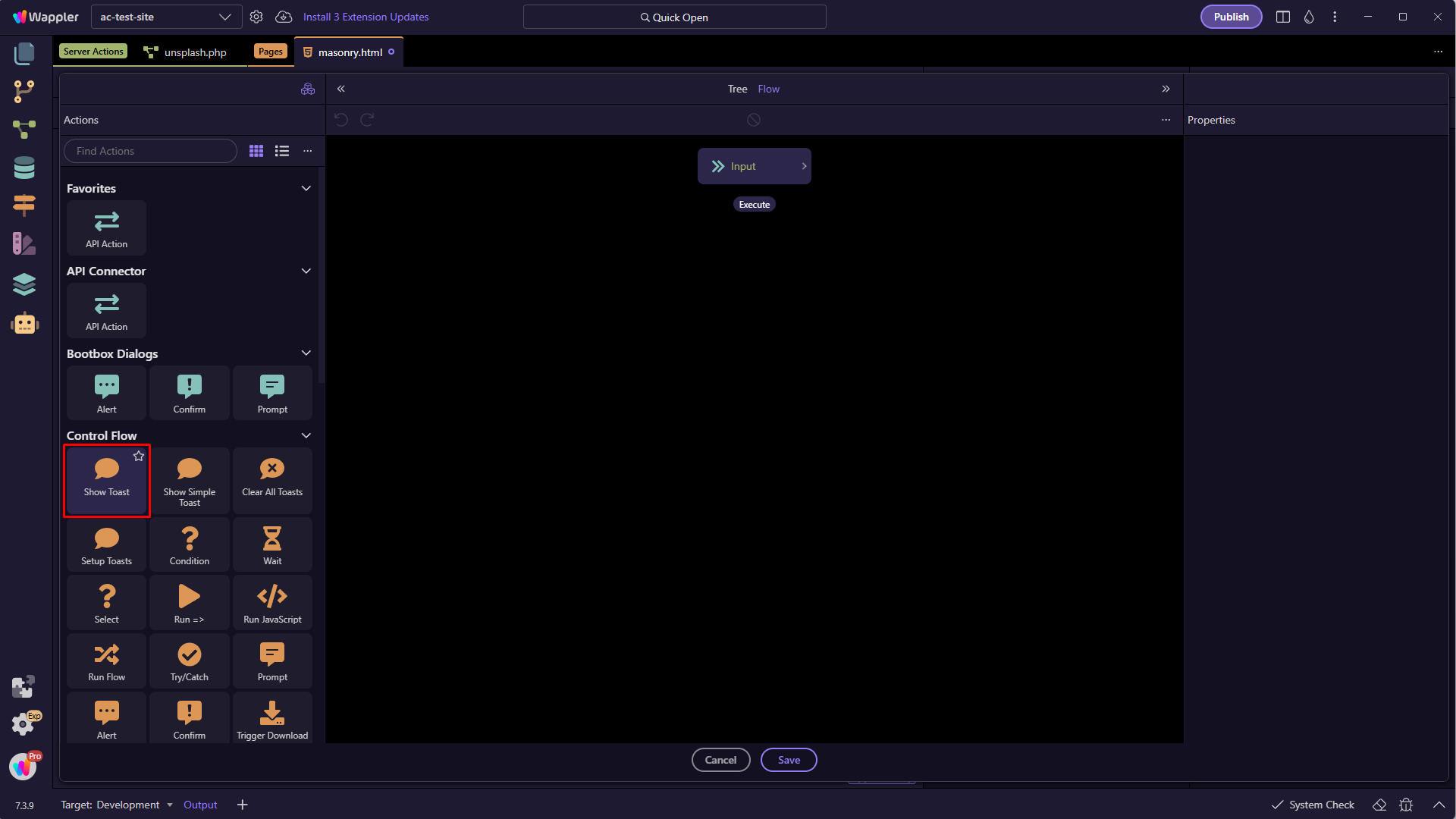
In the flow steps, add the Toast component:

For the Message and Title you can add a static or dynamic text. The events return status and response in the data picker:
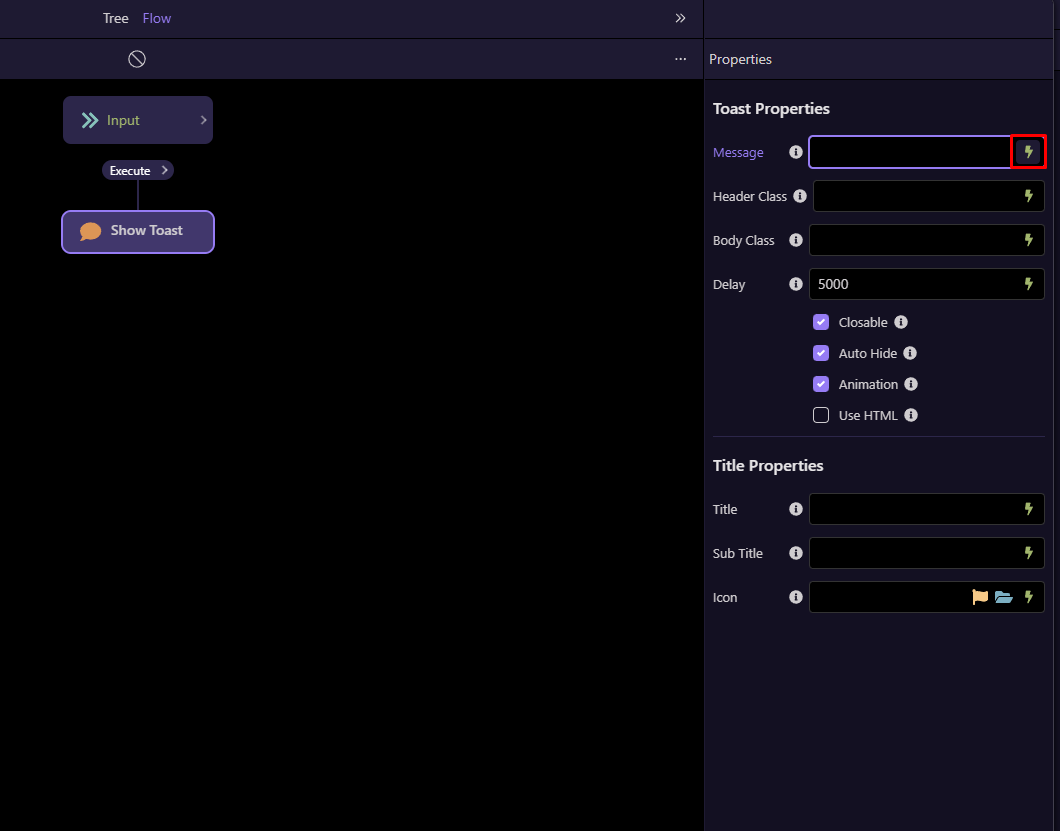
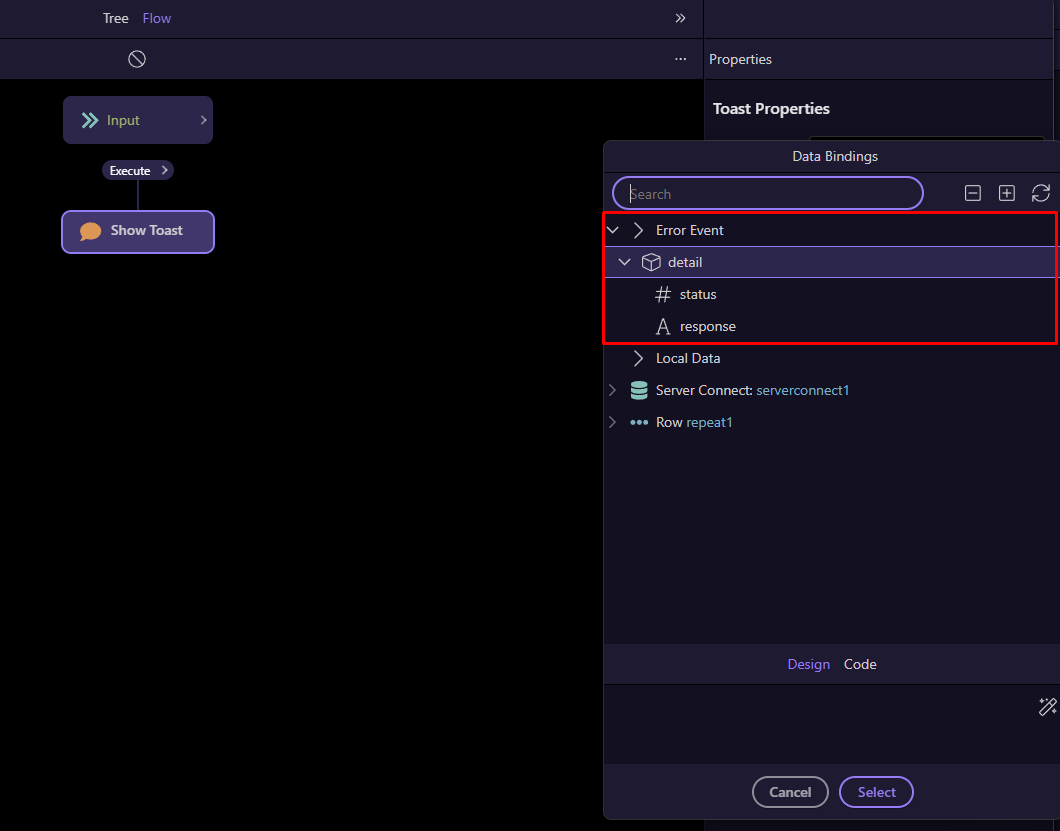
But you can also add a generic message to be displayed:

Click Save.
[!tip]
Keep error messages user-friendly and avoid exposing technical details such as API keys or file paths.
Now, whenever any Server Connect action on the page fails, the toast will appear automatically — no need to add separate on Error events to each Server Connect component.
You can also add and handle the other XHR events as needed, such as Success, Unauthorized, or Forbidden, depending on what you want to achieve on the page.