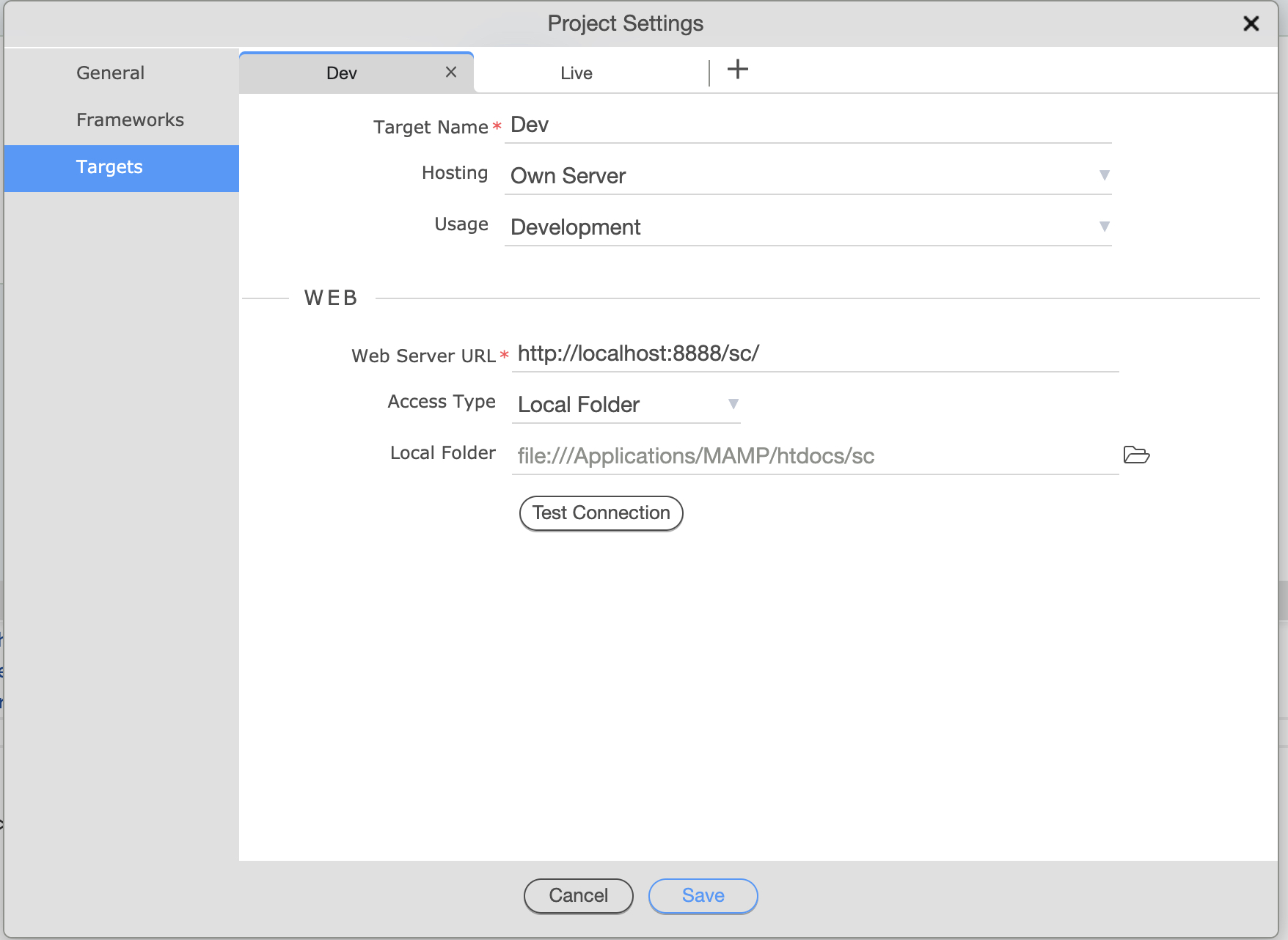
I have a subdirectory for my local Dev site localhost/xy/ and it works fine.
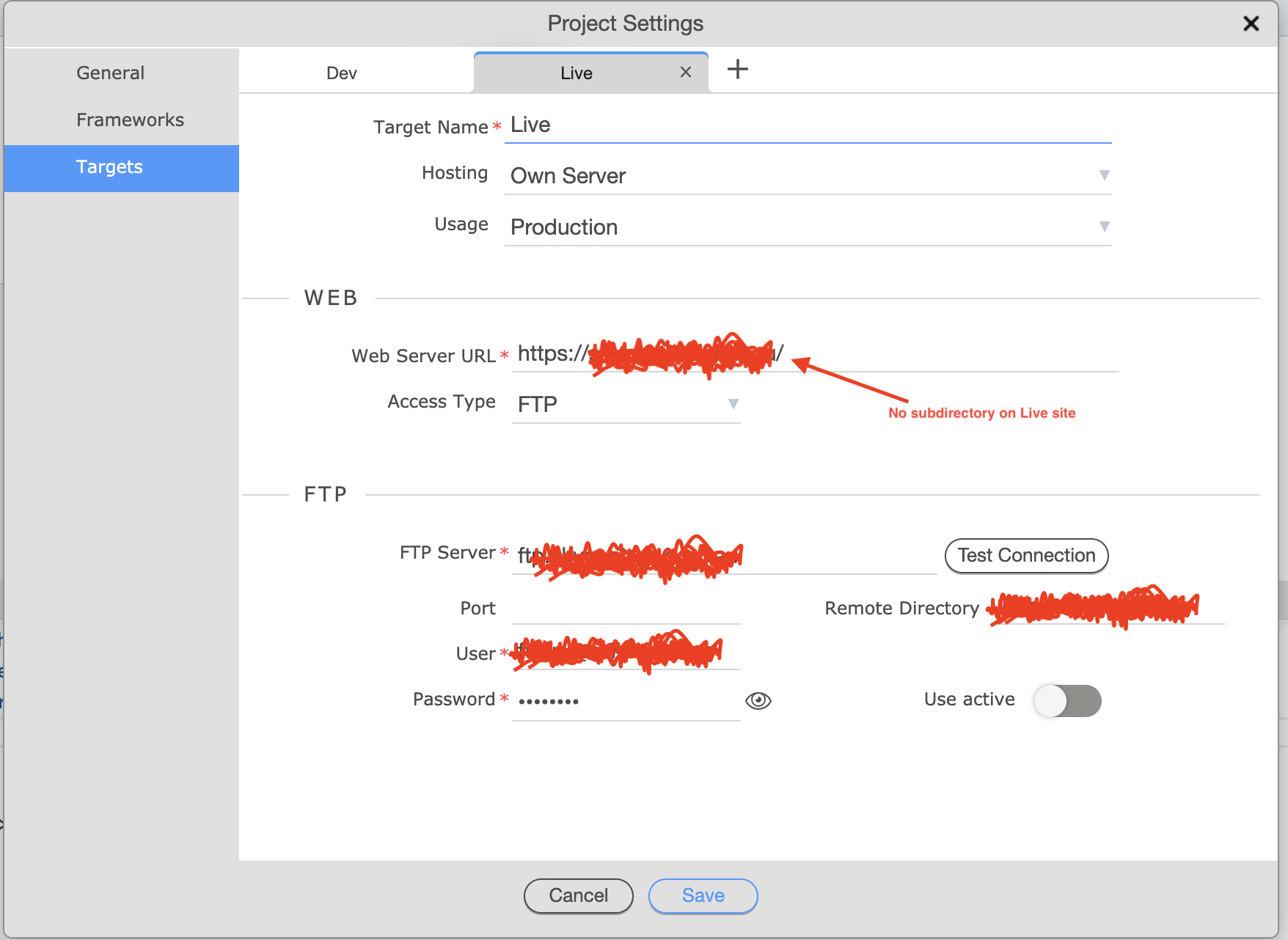
My live site doesn’t have a subdirectory, just http://SITEURL/
When I upload to Live site, it keep looking for the files in the wrong place, it looks for them under the subdirectory “xy” like in the local Dev site.
Yes, I have two targets. One for local, which has a subdirectory and one for live, which has no subdirectory and sits at site root.
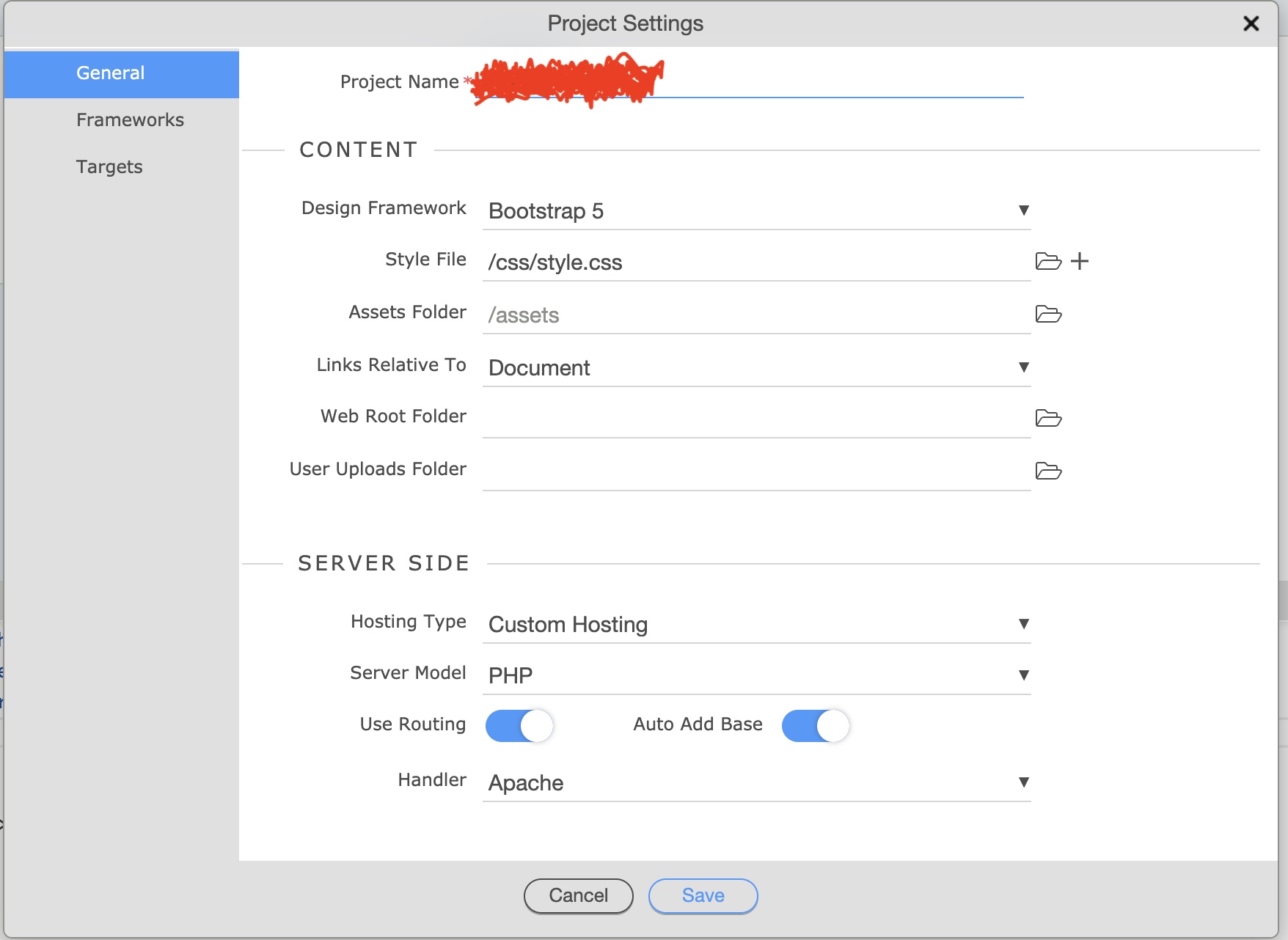
I’ve attached screenshots of my setting and main project settings.
maybe the url to the path is funky or something? Maybe the host sets to a default path. Maybe double check where the files are going via an external FTP client to make sure that they are uploading to where you think they should be? And make sure that the Routing configuration is set as you think it should be?
Also what is the remote directory set to? Can’t see that as is written over?
You can’t develop in a subfolder in the server root like that and upload to the remote server root, the routing won’t work.
Your local and remote fder structures should match.
@Teodor if that’s the case then how can we managed multiple projects on the local dev server? They can’t all be at root level. How do you setup your local dev environment without using subfolders?
if that’s the case then how can we managed multiple projects on the local dev server? They can’t all be at root level. How do you setup your local dev environment without using subfolders?
Here's an example for macos with apache (httpd) installed via brew. If you're using native apache or a pc windows installation the paths for the configuration files will be different, but the changes mostly the same (ie. file path separator for macos and windows differ):
Step 1: Edit the file "/etc/hosts".
Add an entry for the dev site you want to develop for. In this case I want the site "hb.loc" to redirect to my local apache server. 127.0.0.1 hb.loc
Step 2 (only required once): Edit the file "/usr/local/etc/httpd/httpd.conf".
Make sure the include statement for "httpd-vhosts.conf" is not commented out. # Virtual hosts Include /usr/local/etc/httpd/extra/httpd-vhosts.conf
Step 3: Edit the file "/usr/local/etc/httpd/extra/httpd-vhosts.conf".
Add an entry for the dev site you added to "hosts" in step 1. <VirtualHost hb.loc:80> DocumentRoot "/Users/<yourusername>/Sites/hb/" ServerName hb.loc ServerAlias hb.loc </VirtualHost>
*** Don't forget the ending "/" in the path. ***
You can add as many local dev sites as needed by adding more entries to "hosts" and "httpd-vhosts.conf".
The first time you view your local site you may have to specify the full site name ("http://hb.loc") if you used any unknown domain name like the ".loc" in the example.