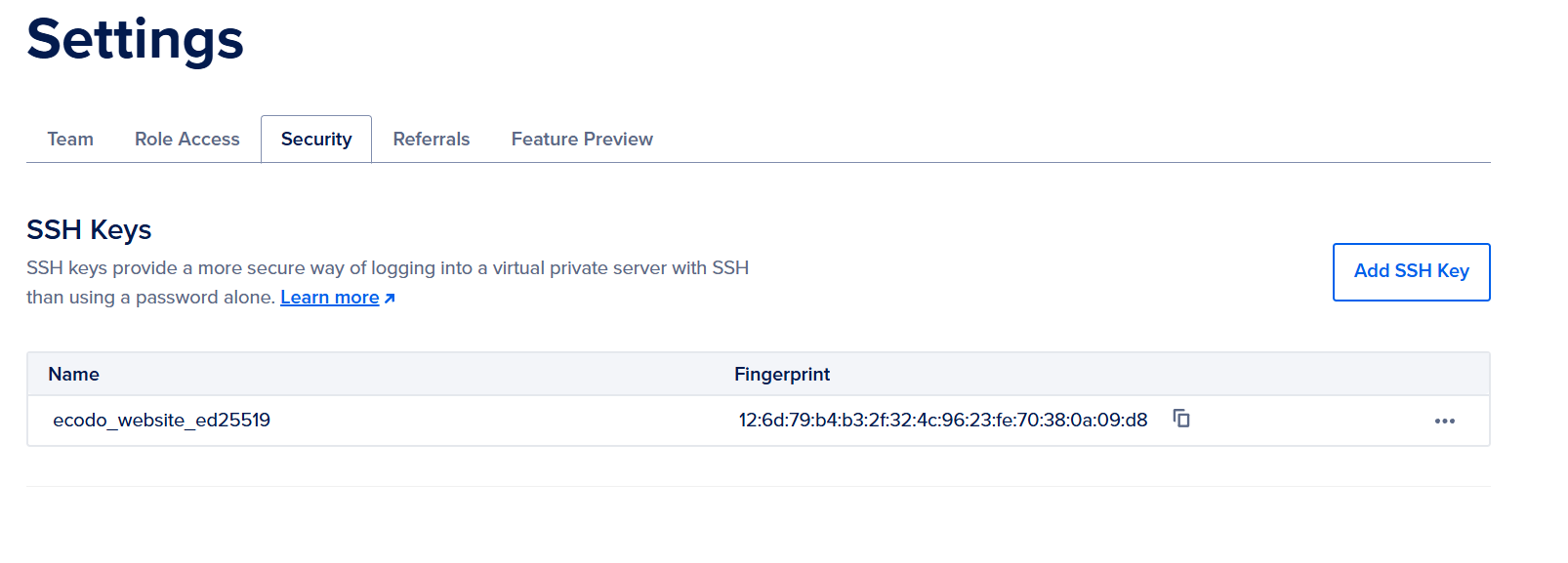
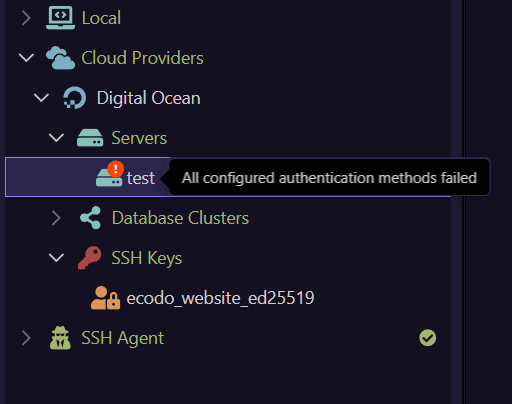
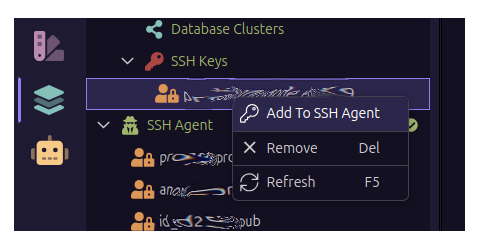
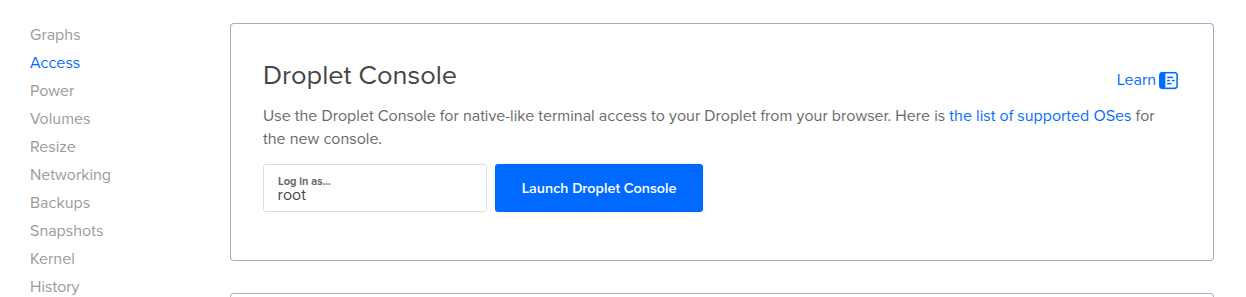
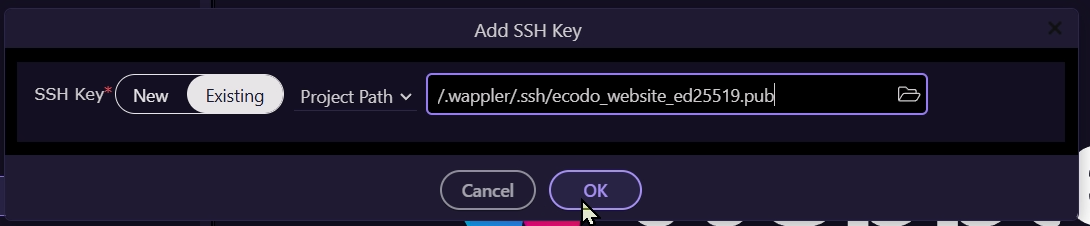
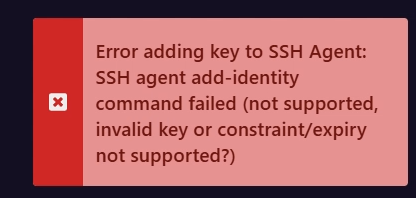
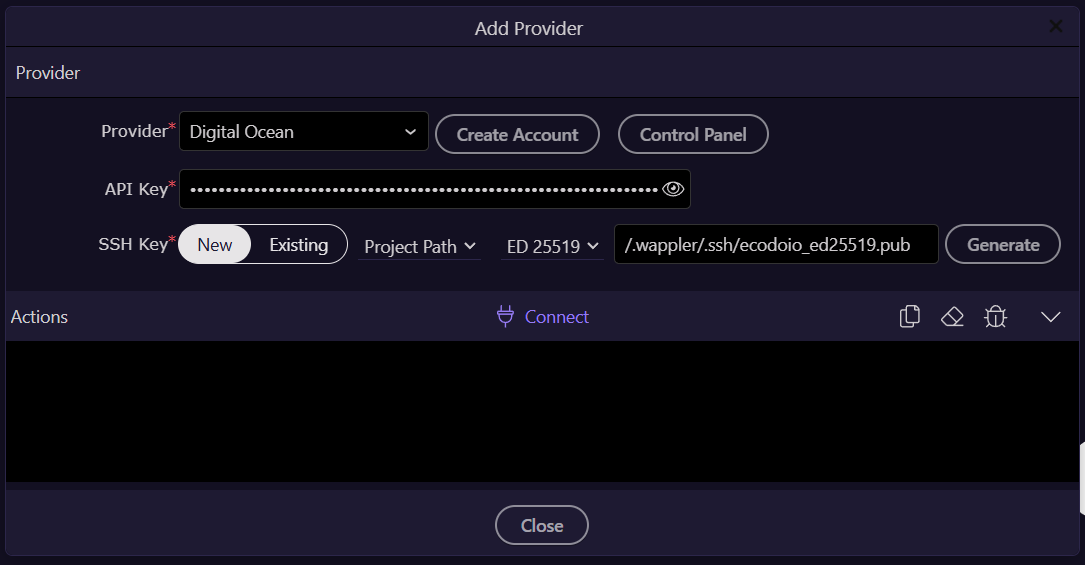
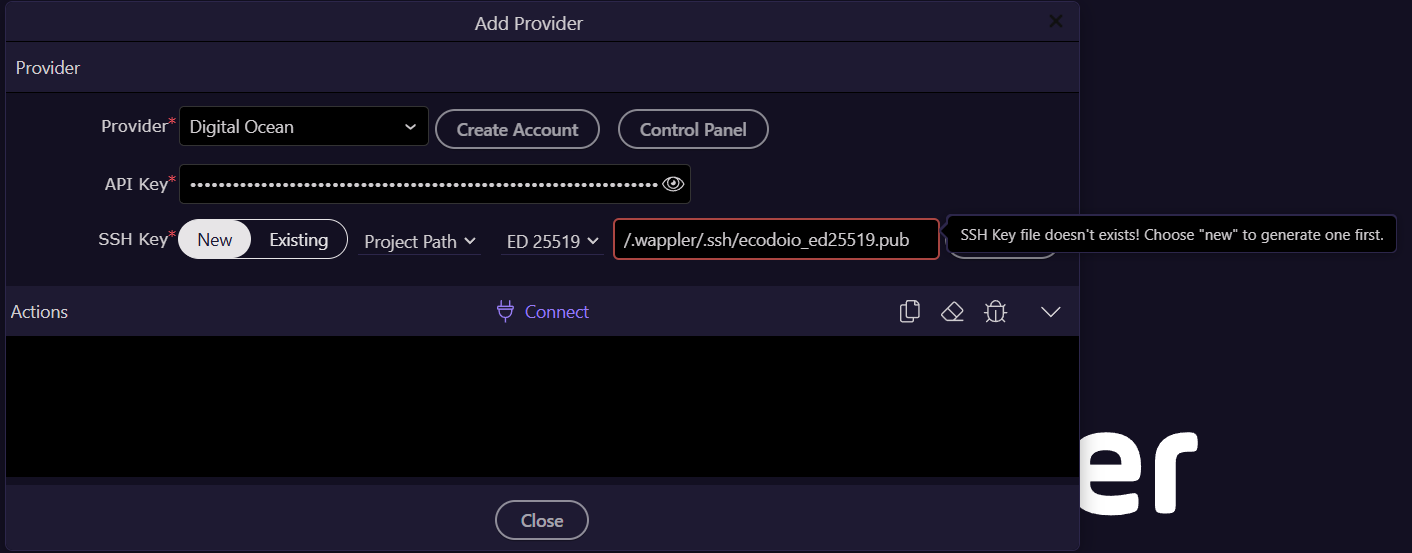
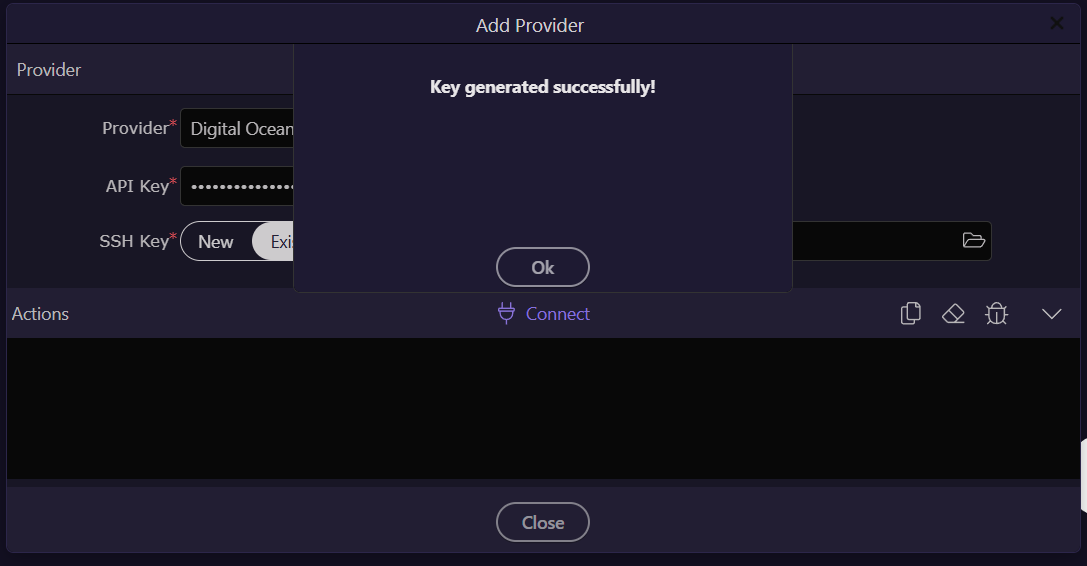
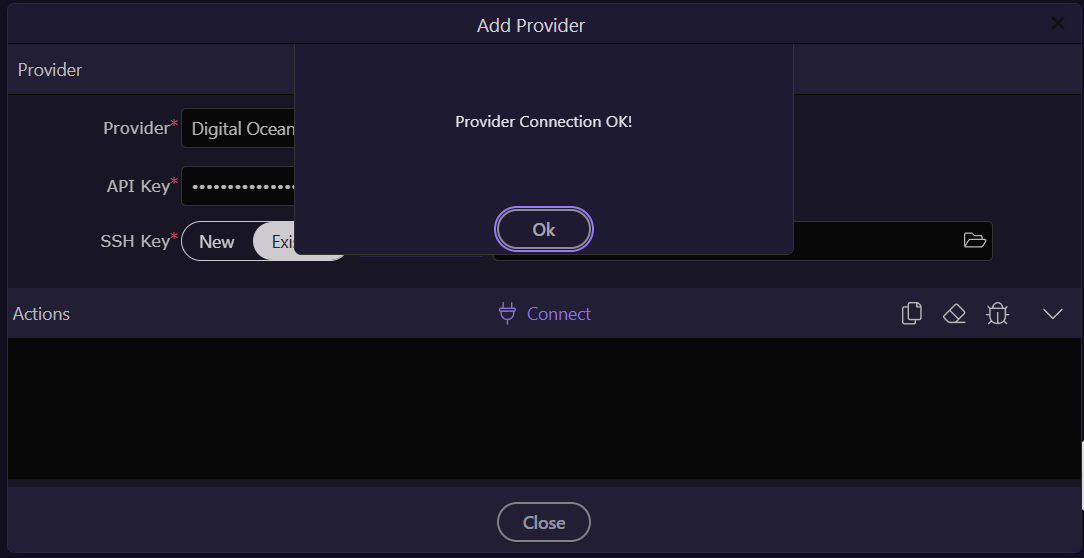
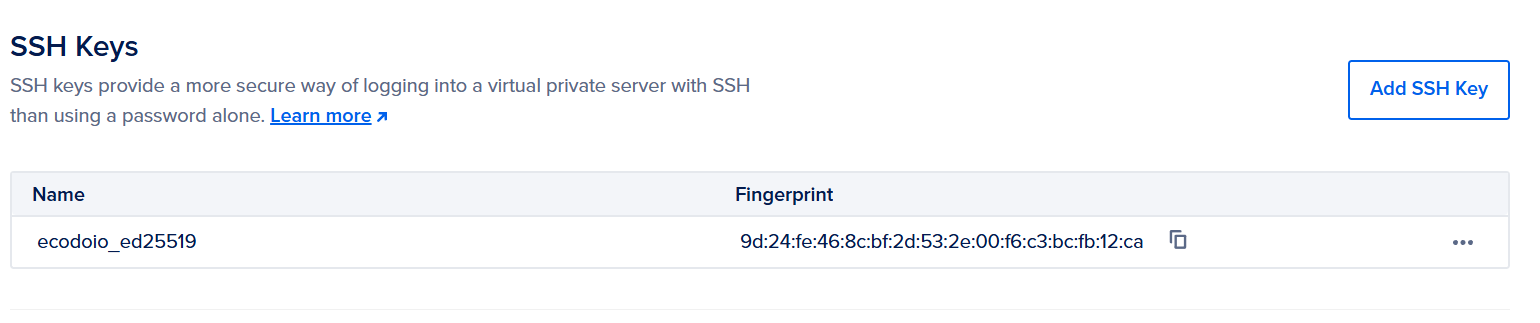
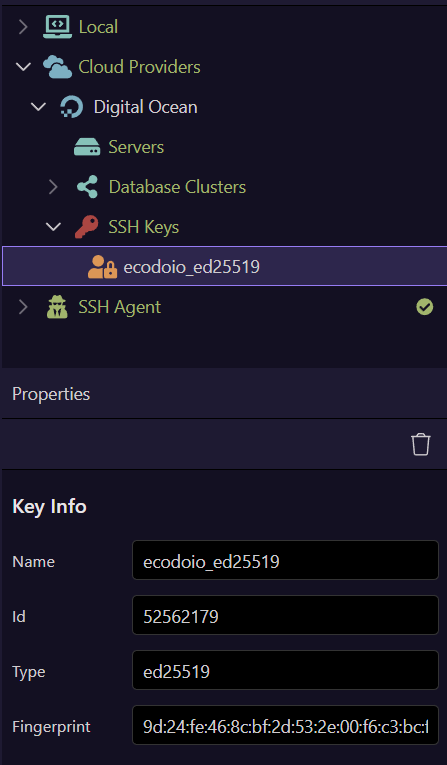
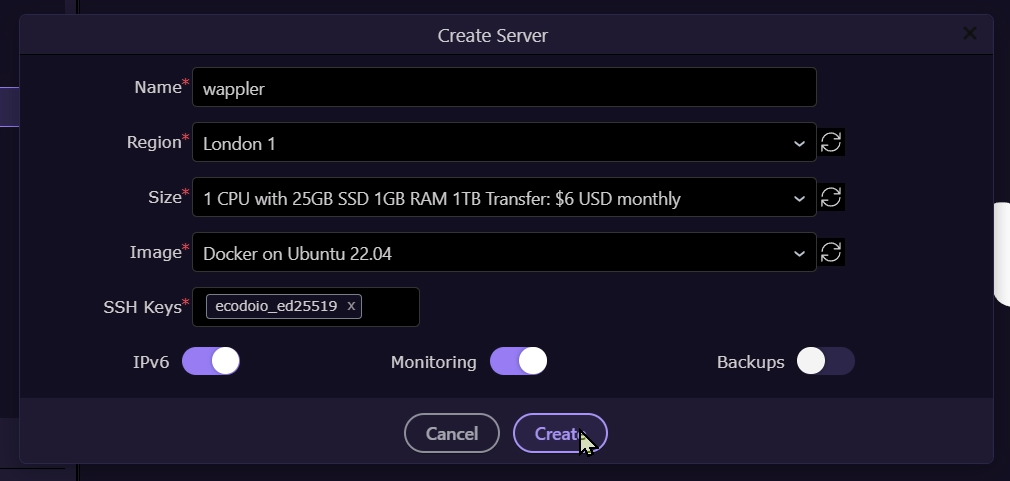
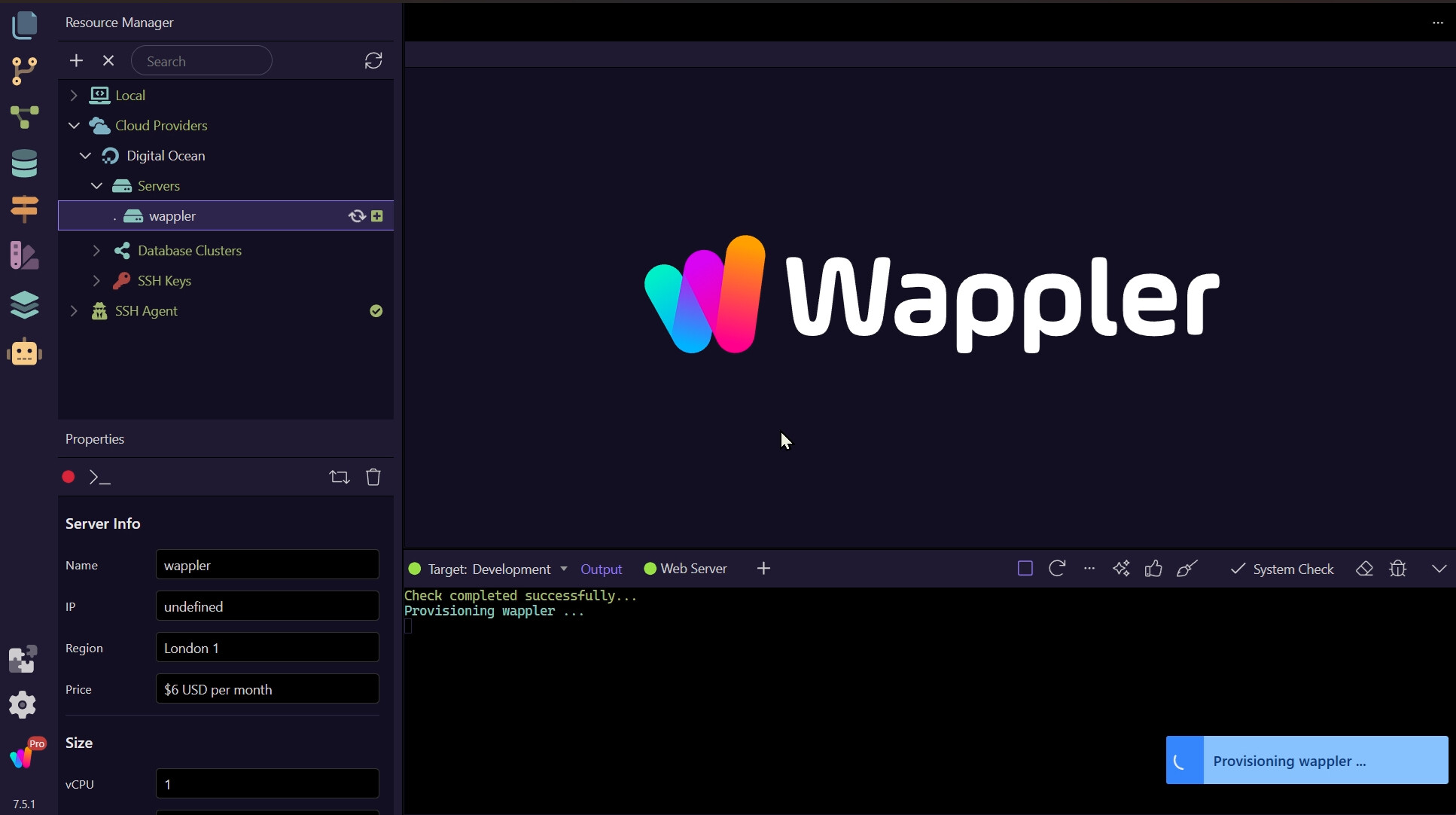
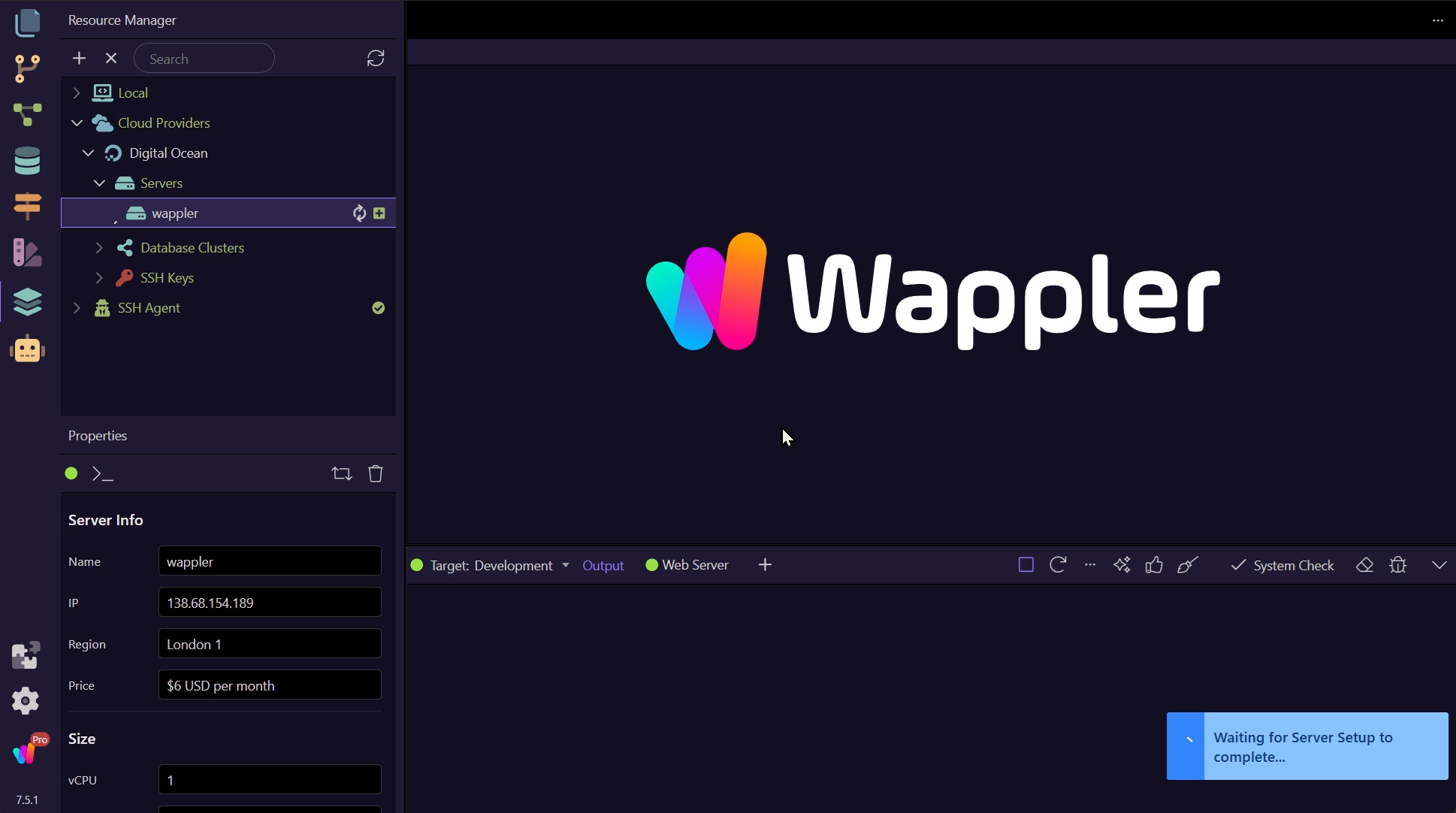
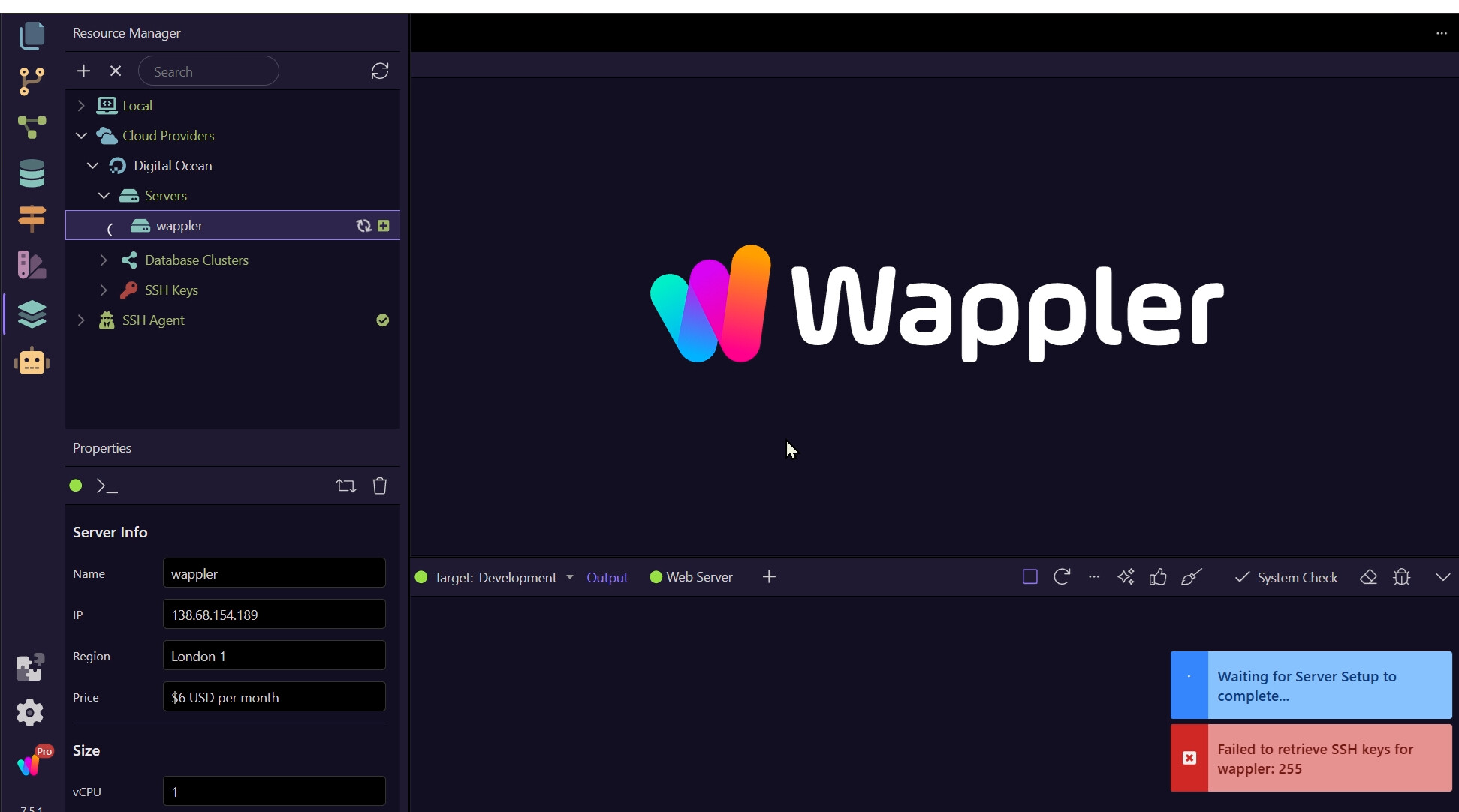
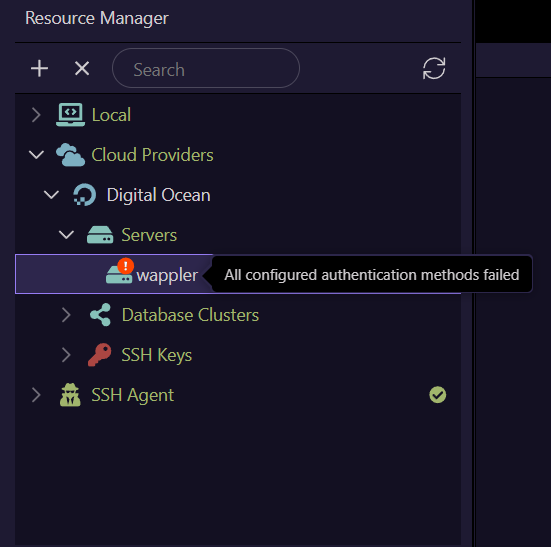
This will then launch the root terminal on the Droplet and should generate/register the SSH key to the Droplet. You may also need to reboot your desktop/laptop for the key to be recognised by Wappler on your local machine. Can be a bit funky that way sometimes.
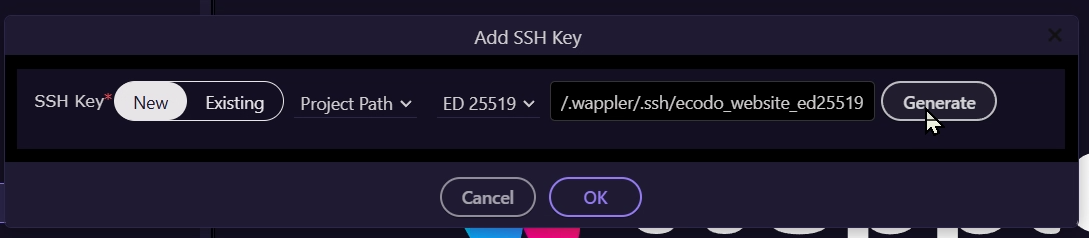
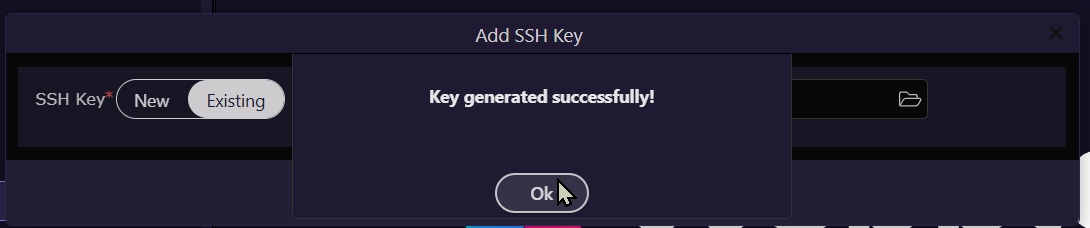
I've never used resource manager, but have you created the ssh key from there? Or are you using an existing one?
Wappler needs that ssh keys are stored in openssh format..
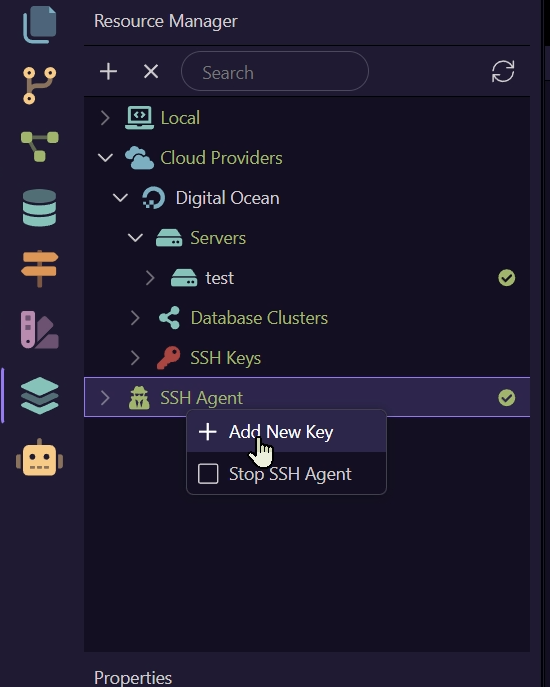
Are you adding the right key? You do have to have the private key part to add it. So make sure you key is located somewhere accessible like in the user .ssh folder and then from the context menu of the SSH Agent - choose "Add New key"
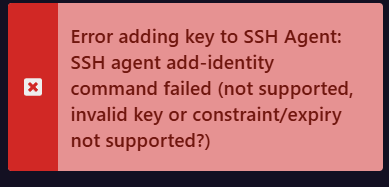
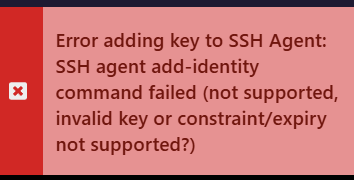
On What OS are you on exactly @raymantle - seems your SSH agent command is not well supported, you might want to update to the latest Windows 11 if you are using windows.
Also if you already have an SSH key - then and used it to create servers or to your cloud provider - you should use that key - no need to generate a new one. Otherwise you will have to redo your servers as well.
I've update our ssh key management libraries to support more key types and also improved reliability, so adding keys to the SSH agent should now work smoothly.
This will be available in the next Wappler update to be released later today.
I’m still experiencing the exact same issues as before, as shown in the screenshots.
I completely uninstalled Wappler, including using Revo Uninstaller to remove all leftover files and registry entries and then performed a fresh install of 7.5.2.
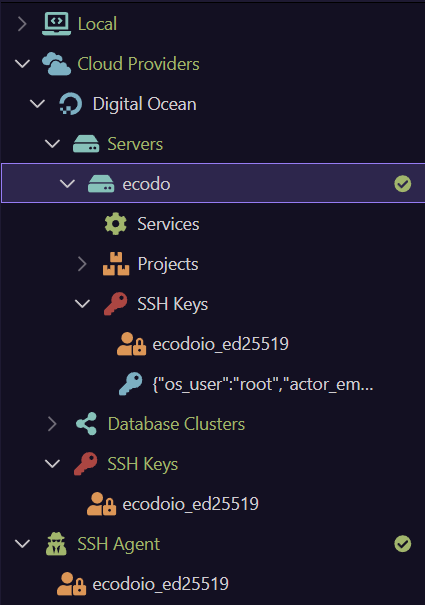
Make sure after you have added the digital ocean as provider, you restart Wappler and your key should be auto added to the SSH agent. You can create servers with it then.
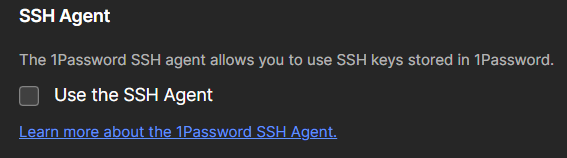
I’m not sure what the correct approach would have to ensure that the user wasn’t using another SSH Agent, but at least we got to the root of the problem.