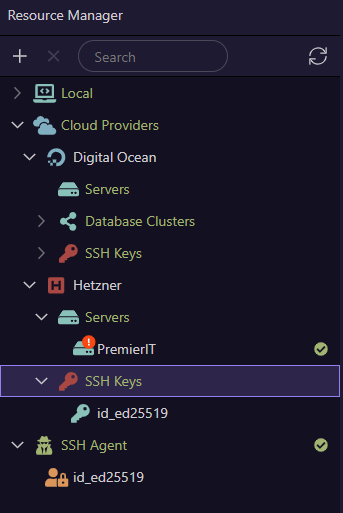
After a computre reinstall I got this error, I guess an issue with the ssh keys, but I don’t have a clue how to fix this. Could anyone point me to the right direction?
Full error message:
Error: All configured authentication methods failed at doNextAuth (C:\Users\montl\AppData\Local\Wappler\resources\app\node_modules\ssh2\lib\client.js:863:21) at tryNextAuth (C:\Users\montl\AppData\Local\Wappler\resources\app\node_modules\ssh2\lib\client.js:1080:7) at tryNextAgentKey (C:\Users\montl\AppData\Local\Wappler\resources\app\node_modules\ssh2\lib\client.js:1089:11) at USERAUTH_FAILURE (C:\Users\montl\AppData\Local\Wappler\resources\app\node_modules\ssh2\lib\client.js:421:20) at 51 (C:\Users\montl\AppData\Local\Wappler\resources\app\node_modules\ssh2\lib\protocol\handlers.misc.js:408:16) at Protocol.onPayload (C:\Users\montl\AppData\Local\Wappler\resources\app\node_modules\ssh2\lib\protocol\Protocol.js:2059:10) at AESGCMDecipherNative.decrypt (C:\Users\montl\AppData\Local\Wappler\resources\app\node_modules\ssh2\lib\protocol\crypto.js:987:26) at Protocol.parsePacket [as _parse] (C:\Users\montl\AppData\Local\Wappler\resources\app\node_modules\ssh2\lib\protocol\Protocol.js:2028:25) at Protocol.parse (C:\Users\montl\AppData\Local\Wappler\resources\app\node_modules\ssh2\lib\protocol\Protocol.js:313:16) at Socket. (C:\Users\montl\AppData\Local\Wappler\resources\app\node_modules\ssh2\lib\client.js:773:21) at Socket.emit (node:events:518:28) at addChunk (node:internal/streams/readable:561:12) at readableAddChunkPushByteMode (node:internal/streams/readable:512:3) at Readable.push (node:internal/streams/readable:392:5) at TCP.onStreamRead (node:internal/stream_base_commons:189:23)
Did you save a copy of the SSH keys (Private and Public) before the reinstallation?
If you didn't save a copy of the keys, then generate new SSH keys. These are saved in the folder C:\Users\<your-username>\.ssh\ Two files are generated id_rsa (Private Key) and id_rsa.pub (Public Key).
After generating new keys, upload or update the Public Key (id_rsa.pub) on your Hertzner server so that Wappler can match the keys to authorise secure connection.
If you are using Resources Manager in Wappler, then reselect the key by right clicking on the SSH Agent before trying to connect to the remote server.
Anyway, using the resource manager I deleted all the keys, then created a new one under the SSH Agent option with default settings (client home). Then imported under Hetzner/SSH keys. After that I checked Hetzner and the new key appeared under the ssh keys (I guess wappler uploaded using API?) but still not working.
I don't think there's any option in Resources Manager to upload SSH keys from the local PC to the remote servers. Most likely the SSH keys you are seeing under the remote servers are the old keys, which are not going to work with the new keys you have created locally.
I haven't worked with Hertzner dashboard, is there any option on their portal to add SSH keys similar to Digital Ocean portal? This is where content from the id_rsa.pub file needs to be added.
Re-assign the new SSH key to your existing server on the Hertzner platform in case this has been unassigned after the SSH public key update
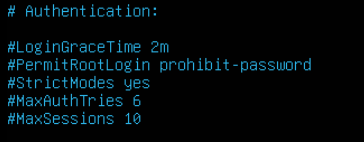
Open the remote server terminal and paste this command sudo nano /etc/ssh/sshd_config
In the file look for this entry. #PermitRootLogin yes
If it is commented out with #, then uncomment it by removing #, Press Ctrl-X and save the changes. Restart sshd with the cmd below and try connecting again from the Resources Manager sudo systemctl restart sshd
Any changes to the sshd config may impact security of the server, so, you might want to comment it out again after verifying your SSH connectivity with the root password.
Since then I tried a few things, added the pub key content to /root/.ssh/authorized_keys (it was empty), didn’t work..
Gemini suggested to ssh from powershell using the newly created key, didn’t work..