Is there a way to not use the root user to connect to a cloud provider server? To use sudo instead? The scenario is the security policy is to not allow root ssh access to servers hosted on a provider, Digital Ocean in this case. Instead users are given sudo access. Is this possible with the Wappler resource manager?
You can specify a different user, but I don't think it uses sudo...
Reviving this old thread.
Today, I had malicious logins on my Ubuntu servers as root user. They got access to the servers and removed all docker deployments, impacting a number of projects.
I have now got the access back to these servers and re-deployed the projects. To ensure the security of apps on these servers, I have disabled root user logins.
Resources Manager: I can import the servers. I have also specified the sudo user in Project Settings under Docker Remote section. However, I cannot access the services and projects that have already been deployed on the servers.
Is there a way to connect and run a remote server with sudo user in Wappler similar to a root user?
Hey Shalabh,
Sorry to hear about malicious logins and hope you were able to resolve the issues. Wondering if you found a solution to "running a remote server with sudo in Wappler" after the root user is disabled?
I searched the Wappler Docs, got 2 different and incorrect answers from ChatGPT then found your post in the forum. I also searched the JSON files in .wappler and cannot find where Wappler is logging on the VPS as root (with the exception of one database entry, which I haven't tested yet).
The Wapper Production Target has a User field under Docker Remote that feels like it "might" be a solution but I wanted to reach out to see if you or anyone else had a solution before I move forward and break something.
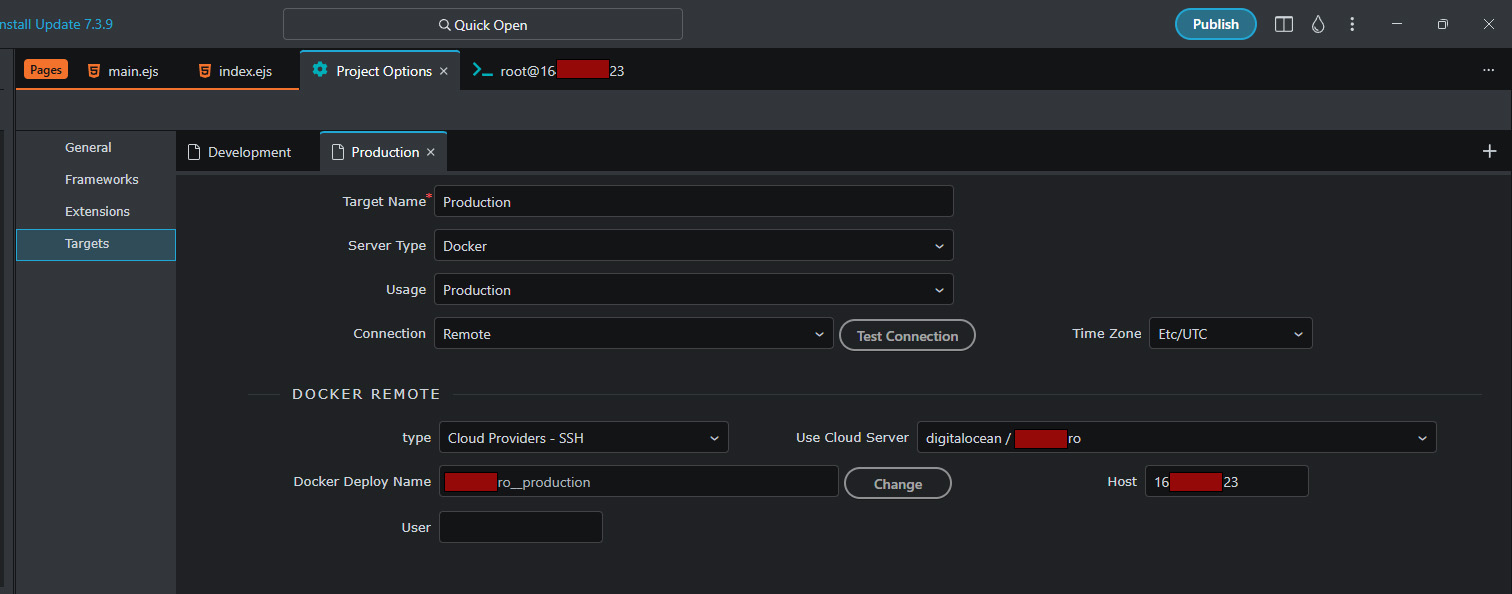
This is a Docker/NodeJS project with a VPS on DigitalOcean.
Thank you for ALL you do for our Wappler Community!
Mark1
You don't want any Docker containers to run as root nor have access to sudo. You need to research running Docker as an unprivileged Users...
Something like this (ChatGPT example):
Here’s a simple, well-commented Bash script that:
- Creates an unprivileged user inside a Docker container,
- Switches execution to that user,
- And can be reused across containers or images (e.g., via a Dockerfile
RUNorENTRYPOINT).
 Script:
 create-unprivileged-user.sh
#!/bin/bash
# --------------------------------------------------------------------
# Script: create-unprivileged-user.sh
# Purpose: Create and switch to an unprivileged user in a Docker container.
# Author: Your Team
# Usage:
#   ./create-unprivileged-user.sh [username] [uid] [gid]
# Example:
#   ./create-unprivileged-user.sh appuser 1001 1001
# --------------------------------------------------------------------

# Exit immediately if a command fails
set -e

# --------------------------------------------------------------------
# 1. Read input arguments or set defaults
# --------------------------------------------------------------------
USERNAME=${1:-appuser}    # Default username is 'appuser'
USER_UID=${2:-1000}       # Default user ID is 1000
USER_GID=${3:-1000}       # Default group ID is 1000

# --------------------------------------------------------------------
# 2. Check if the group already exists; if not, create it
# --------------------------------------------------------------------
if ! getent group "$USERNAME" >/dev/null 2>&1; then
    echo "Creating group '$USERNAME' with GID $USER_GID..."
    groupadd -g "$USER_GID" "$USERNAME"
else
    echo "Group '$USERNAME' already exists, skipping..."
fi

# --------------------------------------------------------------------
# 3. Check if the user already exists; if not, create it
# --------------------------------------------------------------------
if ! id "$USERNAME" >/dev/null 2>&1; then
    echo "Creating user '$USERNAME' with UID $USER_UID..."
    useradd -m -u "$USER_UID" -g "$USER_GID" -s /bin/bash "$USERNAME"
else
    echo "User '$USERNAME' already exists, skipping..."
fi

# --------------------------------------------------------------------
# 4. Adjust ownership of important directories (optional)
#    This ensures your app or volume mounts are accessible
# --------------------------------------------------------------------
echo "Ensuring proper ownership for /app and /data directories..."
mkdir -p /app /data
chown -R "$USERNAME":"$USERNAME" /app /data

# --------------------------------------------------------------------
# 5. Drop privileges and switch to the new user
#    The 'exec' command replaces the shell with the new process
# --------------------------------------------------------------------
echo "Switching to user '$USERNAME'..."
exec su -s /bin/bash "$USERNAME"
 How to Use It
Option 1 — Run inside a container (interactive):
docker run -it --rm ubuntu bash -c "/path/to/create-unprivileged-user.sh appuser 1001 1001"
Option 2 — Integrate in your Dockerfile:
FROM ubuntu:22.04

# Copy the script into the image
COPY create-unprivileged-user.sh /usr/local/bin/create-unprivileged-user.sh
RUN chmod +x /usr/local/bin/create-unprivileged-user.sh

# Create user at build time
RUN /usr/local/bin/create-unprivileged-user.sh appuser 1001 1001

# Switch to non-root user for runtime
USER appuser

WORKDIR /app
CMD ["bash"]
 Notes
Notes
- This script works across most Linux-based Docker images (Ubuntu, Debian, Alpine with small tweaks).
- To make it Alpine-compatible, replace
groupaddanduseraddwith:
addgroup -g "$USER_GID" "$USERNAME"
adduser -D -u "$USER_UID" -G "$USERNAME" "$USERNAME"
- Ensures least privilege best practices: containers never run as
root.
I have suggested the creation of a simple bash script so you can re-purpose it for other deployments and saves you learning too many commands (however I do recommend you learn these commands as makes the whole thing far easier).
As you are on Digital Ocean make sure you take a Snapshot of your container as a backup, and also do the same on your local machine! It can go wrong so at least that way you'll have something to fallback upon if it does...
1 Like
Actually looking at the Wappler User side maybe you can create a User on your local machine. Then echo this User to your remote side on Digital Ocean (creating the same User there). Then specify this new User in the Docker Project settings? @George will have to confirm this? But it does appear you may be able to do just this. Which will simplify things a great deal for you Mark.
1 Like
Hi Mark,
I couldn't find any alternative to connecting to a remote server without root user SSH credentials in Wappler.
I tried, unsuccessfully, by setting up a non-root user with full access permissions on the remote server and then changing the setup in Wappler to connect by using the new username.
I don't recall the exact error messages, but these related to the inability in Wappler to run commands with sudo for non-root users. For this setup to work, an option is needed in Wappler to add a non-root user, prefix commands with sudo and provide password to the remote server (for the non-root user) as required.
On the remote server, I installed fail2ban to ban IP addresses that are attemting to login maliciously.
Disable password login for root user, rely only on SSH authentication
Hi Apple,
I just checked the project settings under Resources Manager where I came across this issue with a non-root user.
When importing a custom server in Resources Manager, the only authentication method that is available is by providing root user credentials. I don't know whether SSH authentication only is available for custom servers.
Only SSH authentication works for cloud providers that are available in Resources Manager such as Linode or Digital Ocean.